Restore All Files in Google Drive Trash (One Click Bulk Restore)
Click below to scan your files and then you can restore every file in your Google Drive trash with a single click.
Trusted by Google users to scan 7.0 billion files and organize 37 Petabytes of data.
One-Click Restore All Files in Google Drive
If your Google Drive Trash contains thousands or even millions of files, restoring them manually can take a long time. Google Drive lets you restore files from the Trash, but it doesn’t offer a built-in way to restore the entire Trash at once.
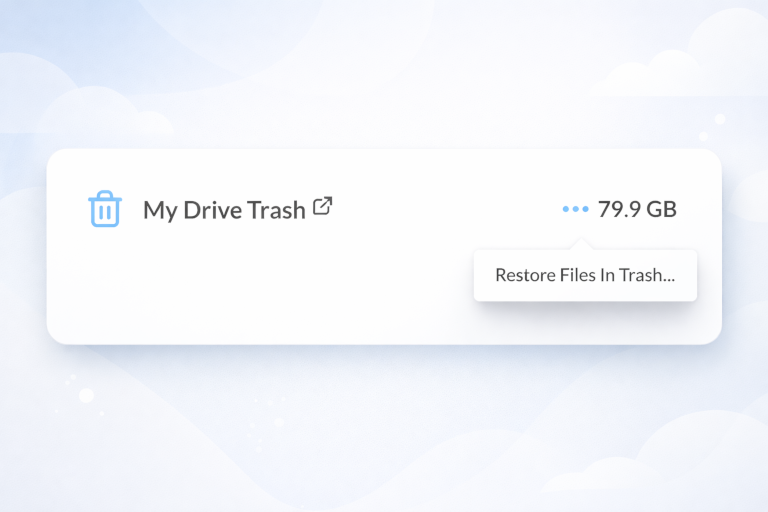
Filerev lets you restore every file in your Google Drive Trash with a single click. No selecting files one by one. After scanning your account, visit the Files by Category page and click Restore Files in Trash. Filerev handles the bulk restore in the background for you.
Recover Deleted Files Without Losing Organization
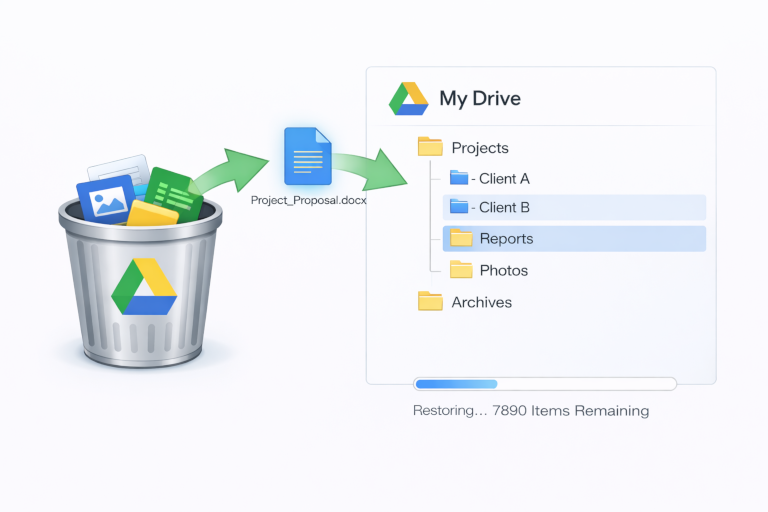
Restoring files from Trash brings them back to their original locations in Google Drive. Filerev simply automates the recovery process while preserving your folder structure.
Your files are restored exactly where they belong, so you can continue working without reorganizing your Drive.
More Than Just a Trash Restore Tool
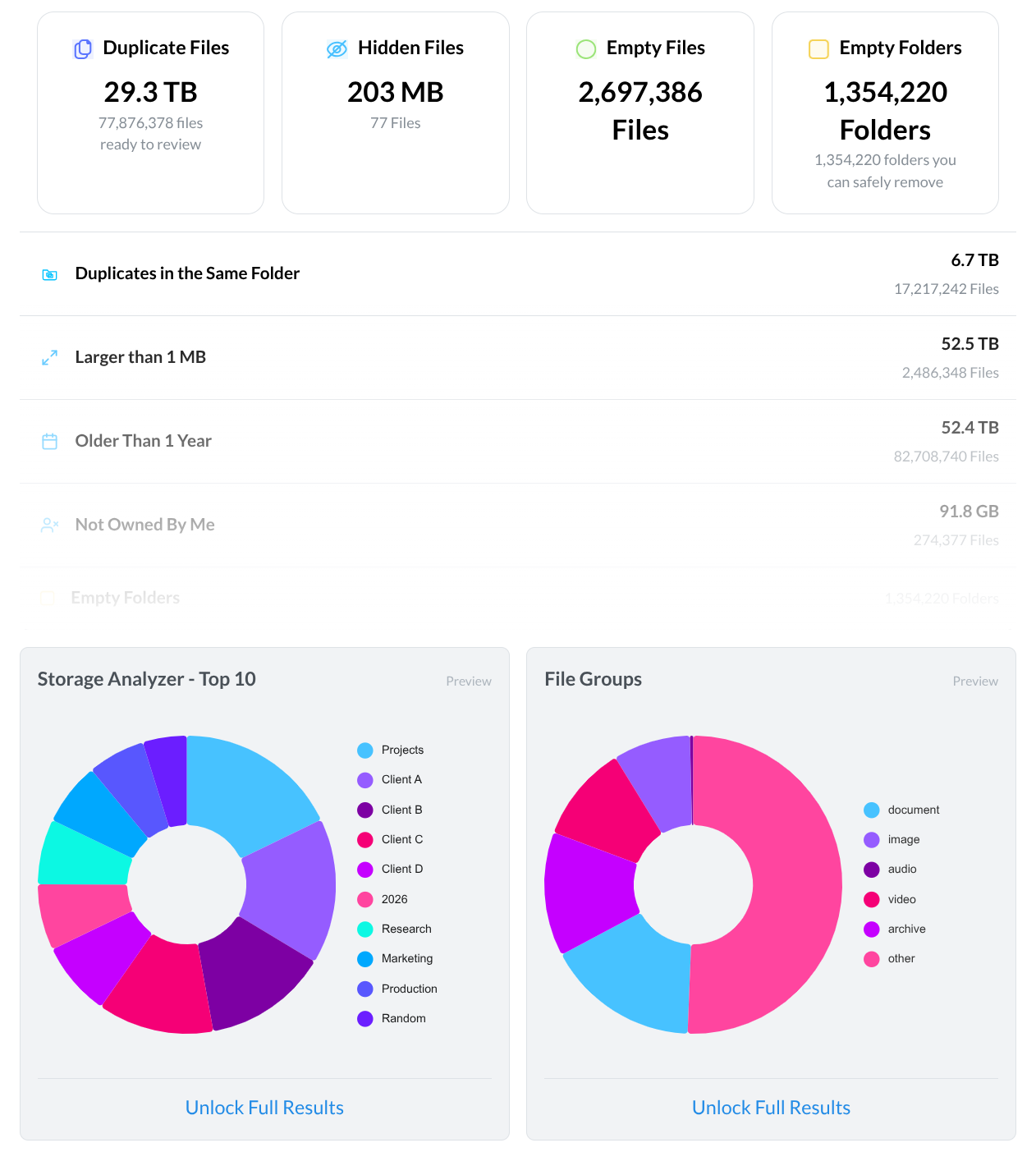
Restoring Trash files is just one part of managing a large Google Drive account. After scanning your Drive, Filerev gives you tools to:
- Find and remove duplicate files
- Identify large folders using the most storage
- Browse files by type, extension, size, or category
- Move or delete files in bulk
Instead of performing repetitive actions inside Google Drive, you can manage your storage from one dashboard
How to Restore All Files in Your Google Drive Trash
Scan your Google Drive Files
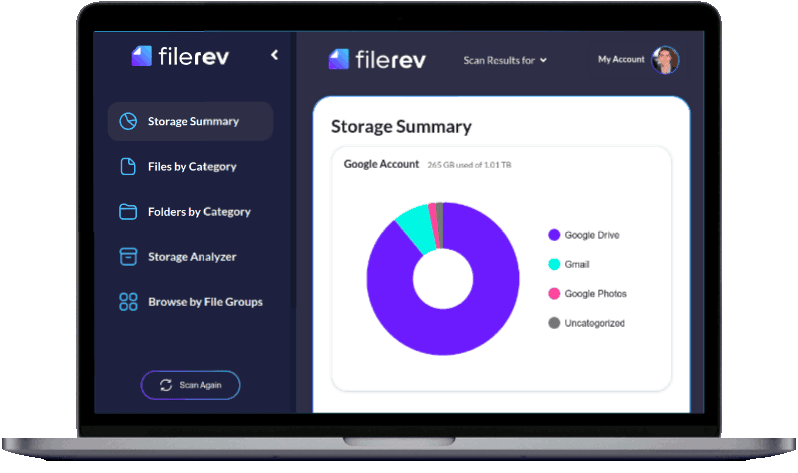
After you log in to the app, you can select the files you would like scanned. You can choose to scan your entire Google Drive account or a specific folder or set of folders. The scan is typically very fast because only a minimal amount of data is retrieved for each file. However, some accounts may take a bit longer if there are many millions of files. In either case, you will receive an email when the scan completes.
Restore Your Files From Your Google Drive Trash
Visit the Files by Category page and scroll to the bottom, where you can see your trash and the total storage used. Click the 3-dot (ellipsis) menu and select “Restore Files in Trash”. A confirmation will pop up, click continue and watch as your files automatically move back to their original locations.
(Optional) View opportunities to improve organization and reduce storage usage.
Visit your storage usage dashboard to see where your storage is used. You can view the specific folders taking up the most storage space, identify duplicates that are no longer needed, easily remove empty folders or files, and more.
Frequently Asked Questions
How do I manually restore a file from Google Drive Trash?
Many users ask how to recover accidentally deleted files. In Google Drive, you can go to the “Trash” (or “Bin”) section in the left sidebar, right-click the file, and select Restore. The file will return to its original location. On mobile, open the app, tap the three dots next to the file in Trash, and choose Restore.
If you want to automatically restore every file in your Google Drive trash, you can use Filerev to accomplish that.
How do I permanently delete files from Google Drive?
Files that are moved to your trash will be permanently deleted after being in your trash for 30 days. Or if you want to immediately free up the space and permanently delete files in your trash you can click on “Trash” in the left-hand menu or visit https://drive.google.com/drive/trash, then click “Empty Trash” at the top. Once confirmed, this action cannot be undone and your files will be permanently deleted.
How can I recover permanently deleted files
If files were moved to your trash and then permanently deleted, ideally, there is a backup of your files that can be restored from. Or you might be able to check with your Google Drive administrator as they may be able to restore the files. However, if those options are not available, there are a few other options, including using the Google Drive Emergency recovery tool, which can be helpful. You can read more about this in the blog post Google Drive Trash Tutorial.
How long do files stay in Google Drive Trash?
Files remain in Trash for 30 days before being permanently deleted automatically. After 30 days, they are typically unrecoverable unless you’re using Google Workspace and an admin intervenes.
Why can’t I see my deleted file in Trash?
Common reasons include:
- The file was permanently deleted manually
- You are logged into the wrong Google account
- The file was owned and deleted by someone else
- The file was deleted more than 30 days ago
- The file was shared with you and not technically deleted; instead, your access was removed.
How do I restore a shared file someone else deleted?
If the owner deleted the file, only the owner (or a Workspace admin) can restore it from their Trash.
If you remove a file that was shared with you (and you don’t own it), it doesn’t go to your Trash. It’s simply removed from your Drive view. You’ll need to ask the owner to re-share the file.
What happens when I restore a folder from Trash?
When you restore a folder from Google Drive Trash, all its contents are restored, including every subfolder and file. This makes it easy to recover entire project directories that were accidentally deleted.
However, when restoring multiple nested folders from Google Drive Trash, the order matters.
For example, if your Trash contains a folder structure like:
Folder A → Folder B → Folder C
and you restore Folder C first, it will be returned to the root of your Google Drive instead of its original location. That’s because its parent folder (Folder B) has not yet been restored.
To preserve the original folder hierarchy, you must restore the top-level (root) folder first, then work your way down through the subfolders. This can be confusing and time-consuming when restoring many folders at once.
Fortunately, Filerev automatically restores files and folders in the correct order, preserving your Google Drive folder structure without manual guesswork.
The majority of my Google Drive files were in my trash and I thought I would have to spend weeks restoring them. I’m so thankful that Filerev had this feature as it recovered all of my deleted files with very little effort on my part. Thank you!
Susan Reed
I used Filerev to bulk-delete files, but I deleted a bit too much. I’m glad there was an option to quickly restore everything in my Google Drive trash. I had a brief moment of panic, then realized Filerev had thought of this, too.
Grant Wagner
We had a disgruntled employee who moved all our files to the Google Drive trash. I thought I was going to spend weeks recovering files 100 at a time. The Filerev restore tool saved me. An invaluable time saver.
Rich Carlson