Export a List of Files in Google Drive
A CSV reporting tool that scans your Drive and lets you download a complete file list.
Trusted by Google users to scan 14.8 billion files and organize 37 Petabytes of data.
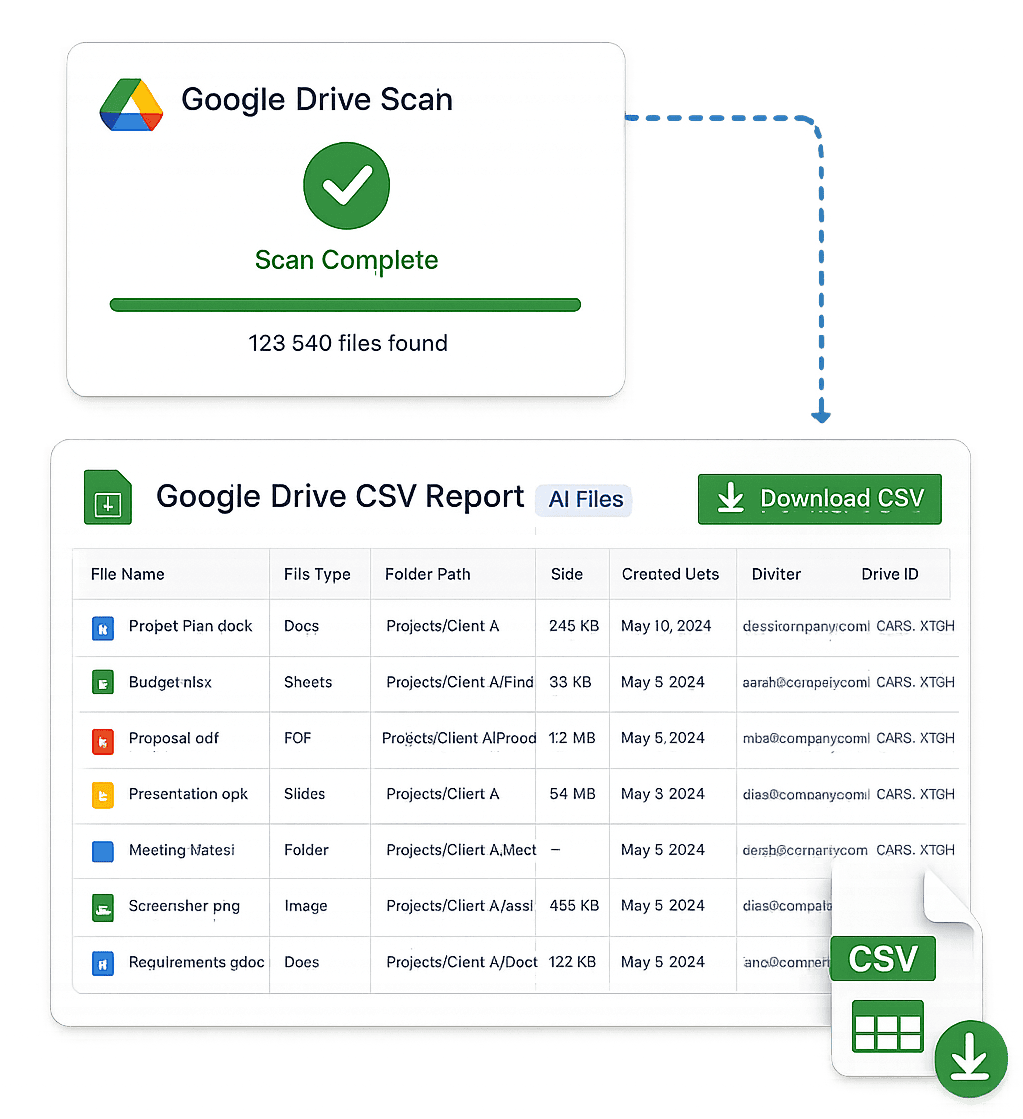
Create a CSV Report of Your Google Drive Files Including Names, Sizes, Folders & More
After scanning your account, Filerev lets you instantly generate and download a complete CSV report of your Google Drive files, with no scripts, add-ons, or manual work required.
Each report includes the metadata you actually need for analysis: file name, file type, folder path, creation and modified dates, storage used, owner, and Drive or Shared Drive ID. Open it in Google Sheets or Excel to sort, filter, and pivot the data for reporting, audits, or deeper analysis.
Get a Complete Report of All Your Google Drive Files
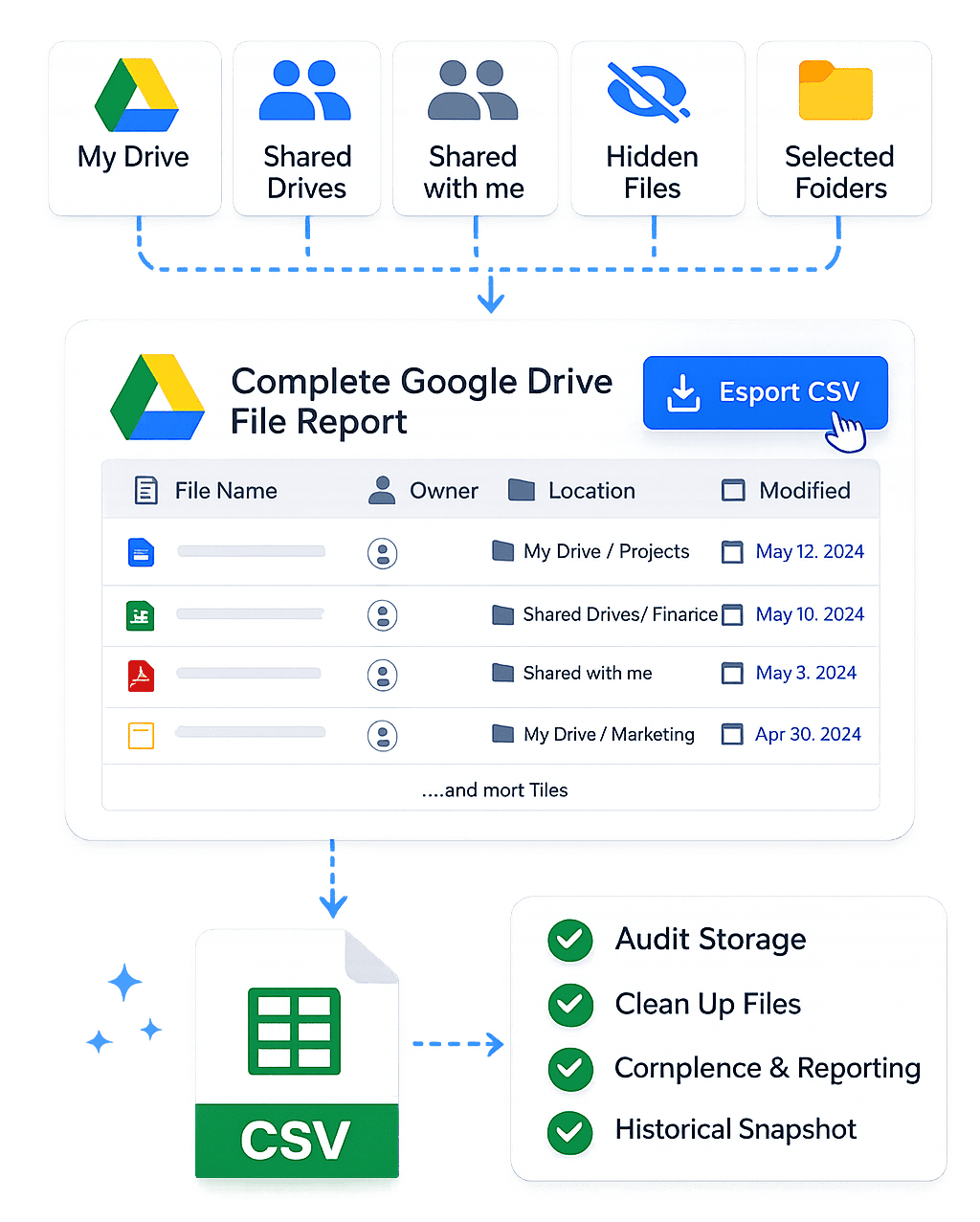
One click exports a full inventory of your entire Google Drive: My Drive, every Shared Drive you have access to, files shared with you, hidden files, and files across deeply nested folders. All consolidated into a single CSV.
Use a complete export to:
- audit storage usage across your entire account in one view
- prepare compliance, legal hold, or reporting data
- take a historical snapshot before a cleanup, migration, or offboarding
- surface cleanup opportunities by analyzing your full file list in one place
Export a Filtered List of Google Drive Files by Folder, Type, or Size
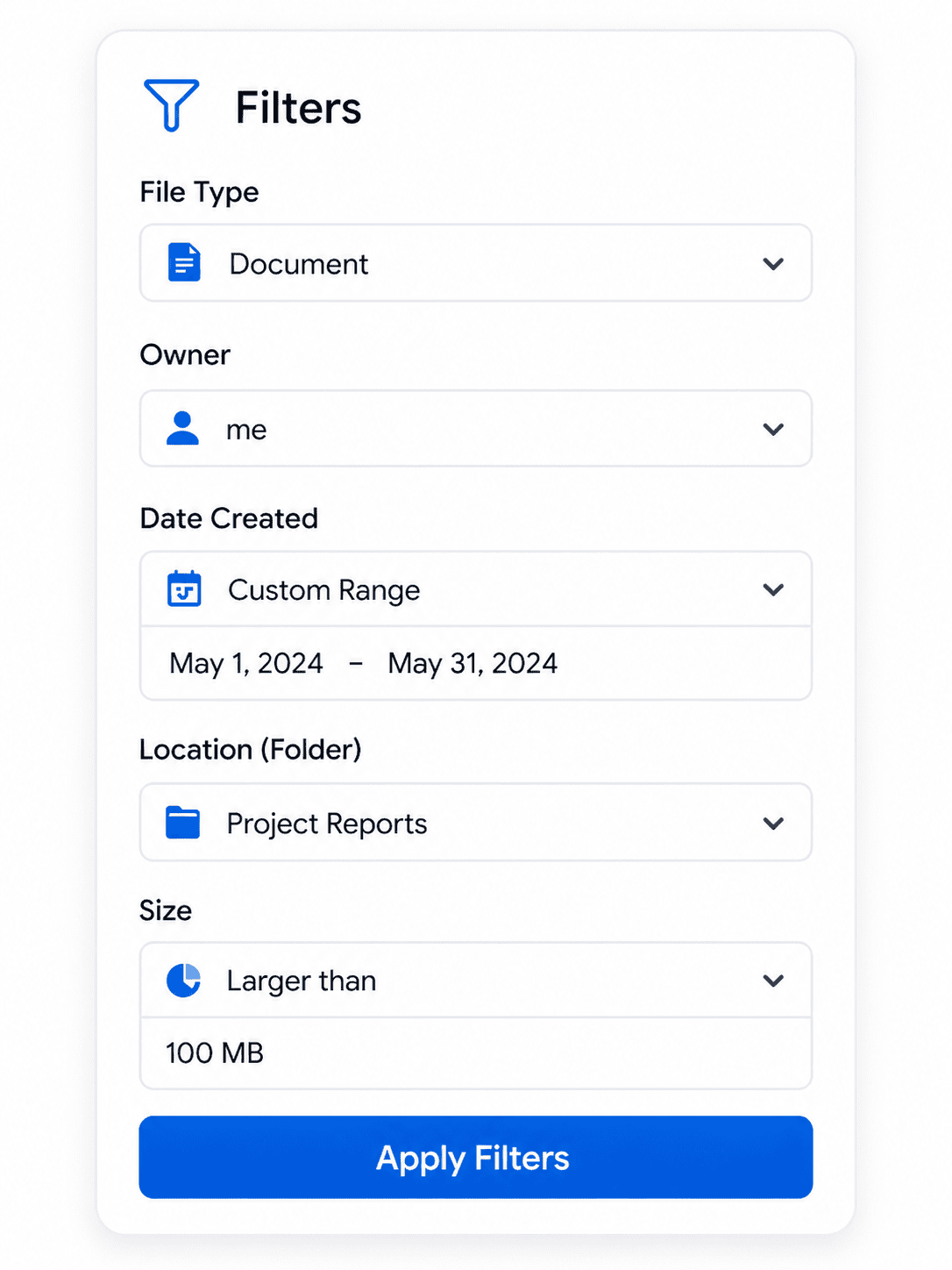
Sometimes you don’t need everything; you need the right slice. Filerev lets you export a filtered CSV containing only the files that match your criteria.
Filter by file type to pull every video, PDF, or export across your account. Filter by folder to inventory a single project or Shared Drive. Filter by size to surface the files using the most storage. Filter by owner to see what a specific team member has created. Combine filters to narrow further: large videos owned by a specific user, in a specific folder, modified in the last year.
The result is a CSV tailored to your exact filters, making it easy to download a targeted subset of your Google Drive files without sorting through everything manually.
How to Export a List of Files from Google Drive (Step-by-Step)
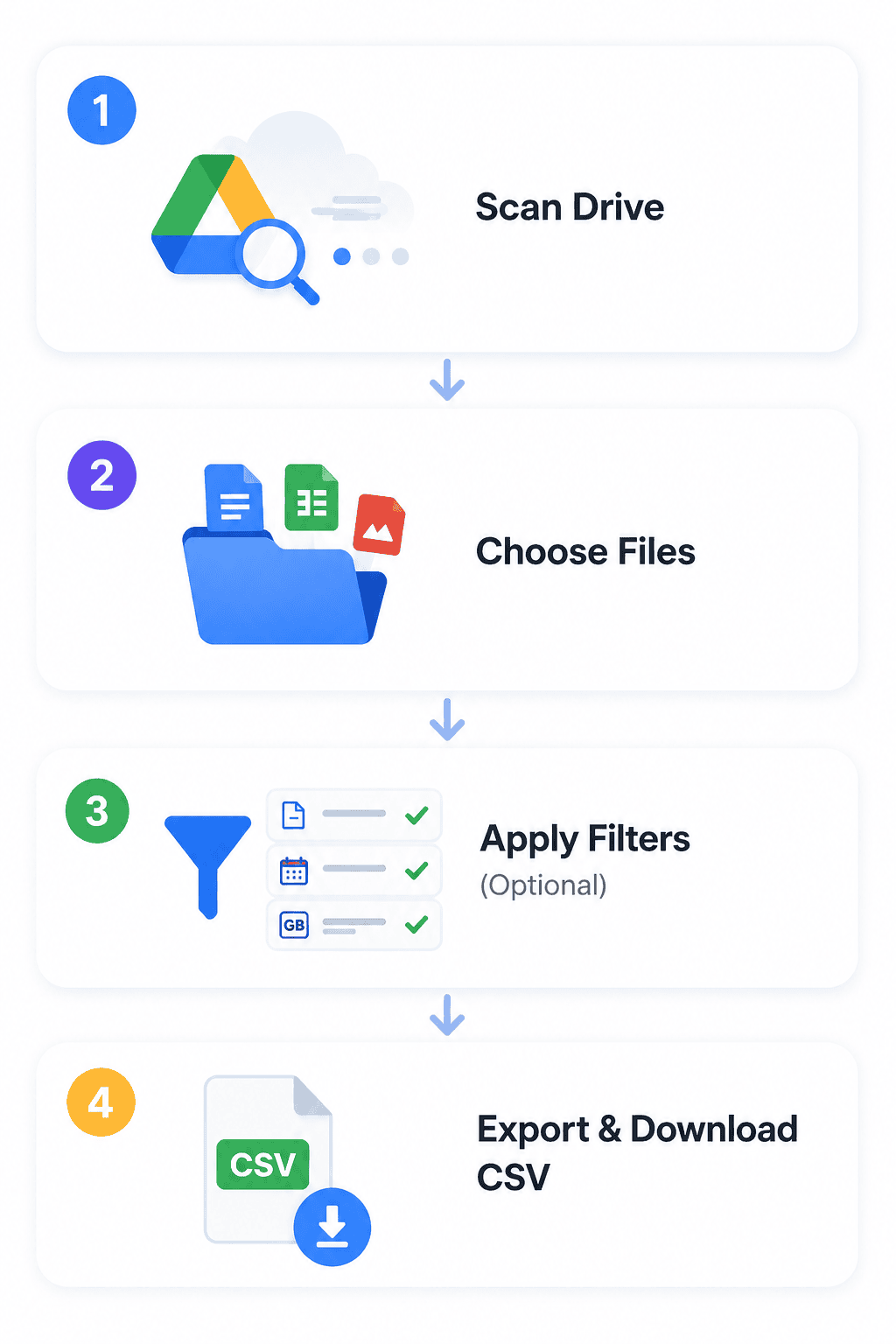
Scan your Google Drive Files
To export a complete list of your Google Drive files, start by scanning your account. This allows Filerev to securely read your file metadata and build a full inventory of your Drive.
The scan runs in the background and includes files across My Drive, Shared Drives, and nested folders. Once complete, your files are organized into categories so you can quickly generate reports without digging through Drive manually.
Choose the Files You Want to Export
After the scan finishes, navigate to the file category you want to export. You can create a report of all files in your account or focus on specific categories like duplicate files, large files, file types, or hidden files.
This makes it easy to generate exactly the report you need, whether you’re auditing storage, cleaning up files, or creating documentation.
Apply Filters to Export a Specific File List (Optional)
If you only need a subset of your files, you can apply filters to narrow down the results before exporting.
Filter by file type, folder location, owner, creation date, or storage size to generate a targeted CSV report. This is especially useful when you want to export only certain files instead of your entire Google Drive.
Generate & Download Your Google Drive File List as a CSV
Click the Export CSV button at the top of the page to generate your report. Once ready, you can download your Google Drive file list as a CSV file.
Open the file in Excel, Google Sheets, or any spreadsheet tool to sort, analyze, or share your data. Whether you’re auditing storage, preparing reports, or organizing files, your exported file list is ready to use right away.
Frequently Asked Questions
How can I export a list of all Files in Google Drive to a CSV?
The easiest way to export a list of all your Google Drive files to a CSV is to use a tool like Filerev. After scanning your account, you can generate and download a complete file list with a single click.
While it’s possible to export file data using Google Apps Script or the Google Drive API, these methods require technical setup and often run into time or memory limits. For most users, using a dedicated tool is faster, more reliable, and requires no coding.
Can I export files from a specific folder instead of the entire Drive?
Yes, you can export a list of files from a specific folder or multiple folders.
Simply navigate to the All Files view (or any category), apply a folder filter, and then export your results as a CSV. This allows you to download a targeted file list instead of exporting your entire Google Drive.
What file details are included in a Google Drive CSV export?
When you export your Google Drive file list as a CSV, the report includes all the key details needed to audit, organize, and analyze your files.
- Name
- File type (mimetype)
- Folder path
- Creation date
- Storage used (bytes)
- Size (bytes)
- Owner Name
- Drive or Shared Drive ID
- Path
- Video Duration
- Google Drive File ID
- File URL
- Parent URL
- Duplicate File ID (if exporting duplicate files)
When exporting a list of folders in Google Drive is the following:
- Name
- Creation Date
- File Count
- Folder Count
- Storage Used (bytes)
- Size (bytes)
- Owner Email
- Drive or Shared Drive ID
- Path
- Google Drive Folder ID
- Folder URL
The Size field shows how large the file or folder would be if downloaded to your computer. Storage Used shows how much space it actually takes up in Google Drive. These values can be different if a file has multiple versions or if Google doesn’t count the file toward your storage limit.
How can I export a list of files from a large Drive with thousands or millions of files?
You can export a list of files from a large Google Drive, including accounts with thousands or even millions of files, by scanning your Drive and generating a CSV report with Filerev.
Filerev is built to handle large-scale exports, allowing you to generate and download a complete Google Drive file list without missing data. This works across My Drive, Shared Drives, and deeply nested folders.
Manual methods like Google Apps Script often fail on large accounts due to execution time and memory limits, which can result in incomplete reports. Using a purpose-built solution ensures your export is accurate and fully complete.
Can I export file lists from Shared Drives (Team Drives)?
Yes, you can export file lists from one or multiple Shared Drives with Filerev.
When starting your scan, simply select the Shared Drives you want to include. After the scan, you can export a complete file list or apply filters to download a list of files from specific folders in Shared Drives.
I needed a way to export a full list of my Google Drive files to CSV, and this made it incredibly simple. Within minutes, I had a complete report with file names, sizes, and folder paths that I could sort in Excel.
Daniel Harper
This tool helped me finally understand what was taking up space in my Google Drive. Being able to export a detailed CSV report of all my files made it easy to audit storage and clean things up quickly.
Lisa Nguyen
I was trying to download a list of files from Google Drive for a project, and doing it manually was not realistic. Filerev let me generate a CSV report instantly, and everything I needed was already organized.
Chris Bennett